


To enable Verint Community to send or receive email, navigate to Administration > Email > Email Options:
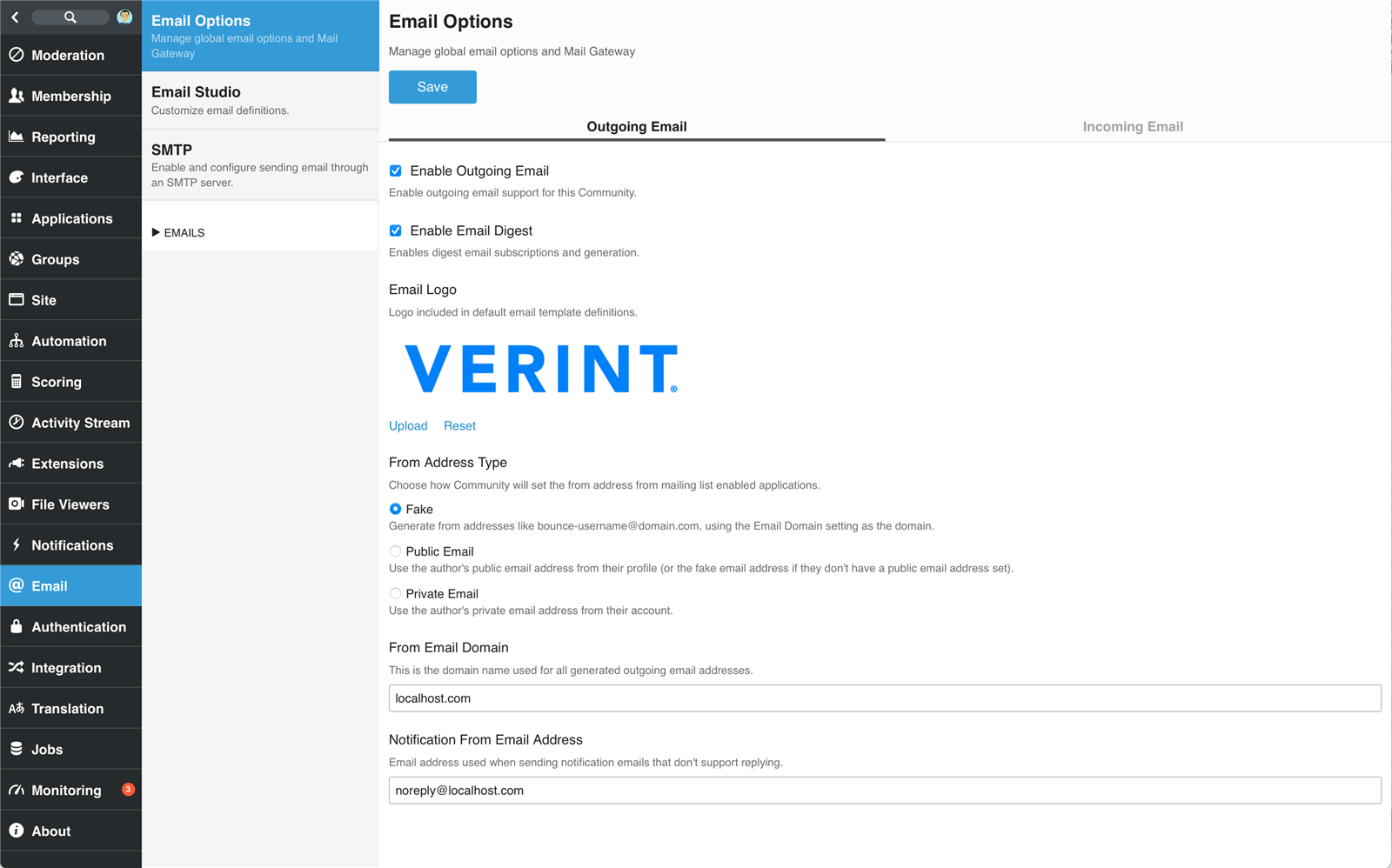
This form provides all of the configuration to connect Verint Community to your email service provider:
Outgoing Email
- Enable Outgoing Email - Enable email for the community. If disabled, no email will be sent from the community.
- Enable Email Digest - Enables registered users to receive a daily and weekly group email digest of group activity.
- Email Logo - Navigate to a file or revert to the default image.
- From Address Type - Select the format of the 'from' email address from mailing-list enabled applications.
- From Email Domain - Specify the site domain name that all email addresses will be used in, such as "mysite.com."
- Notification From Email Address - Specify the email address from which all non-mailing-list enabled outgoing email will be sent.
Incoming Email
- Enable Incoming Email - Enable or disable incoming email for the site which enables the community to read incoming email as requests to add content to the site, for example, for integrating forum threads with email or for enabling blog posting by email. See the section below on 'Considerations for Incoming Email' for more details.
- Incoming Mail Accounts - When incoming email is enabled, the list of configured mailboxes which can be used for incoming mail integration are listed. Accounts are managed via Environment Configuration 's MailGateway section's Mailboxes list.
- Enable Message Header Logging - When enabled, incoming email information is logged in the event log.
Click Save to apply the settings.
Considerations for Incoming Email
The incoming email functionality enables Verint Community to read incoming email against a "catch all" email address and associate incoming email to actions within the community such as new threads or replies in forums or new blogs posts. The setup of mail gateway requires the ability to create a catch all email address or multiple use-specific mailboxes:
- Create a catch-all mailbox on your mail server that receives all Verint Community messages. This is often based on domain. For example, if the community’s domain is community.website.com, then a catch-all mailbox could be set up to receive any email sent to *@community.website.com. That mailbox needs to be added to Verint Community's configuration within the Environment Configuration 's MailGateway section's Mailboxes list.
- Create a mailbox for each mailing list the site uses. For example, if you have a forum with a mailing list of helpforum@community.website.com, you will need a mailbox on your mail server to receive those emails and then add that mailbox to Verint Community’s configuration within the Environment Configuration 's MailGateway section's Mailboxes list. This will have to be done for each mailing list used by the site.